Number Every Page of an Exhibit: Exhibit 1, 1-2, 1-3 …
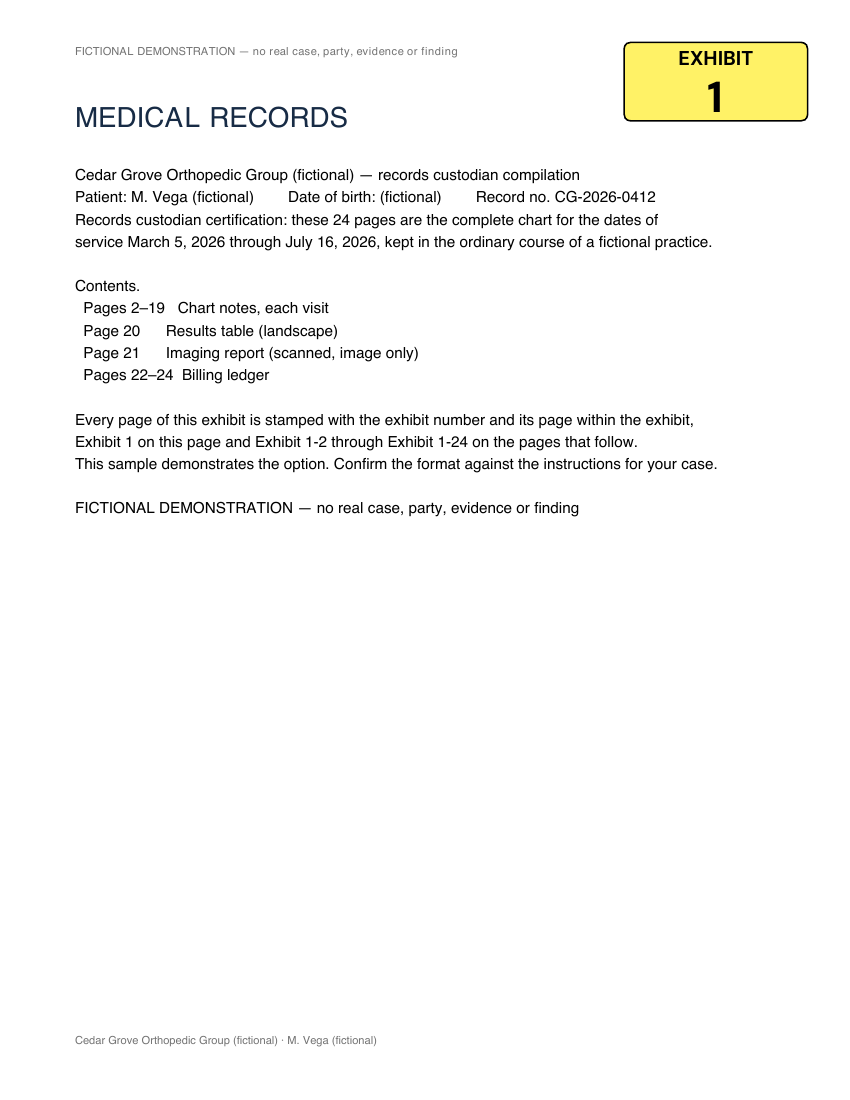
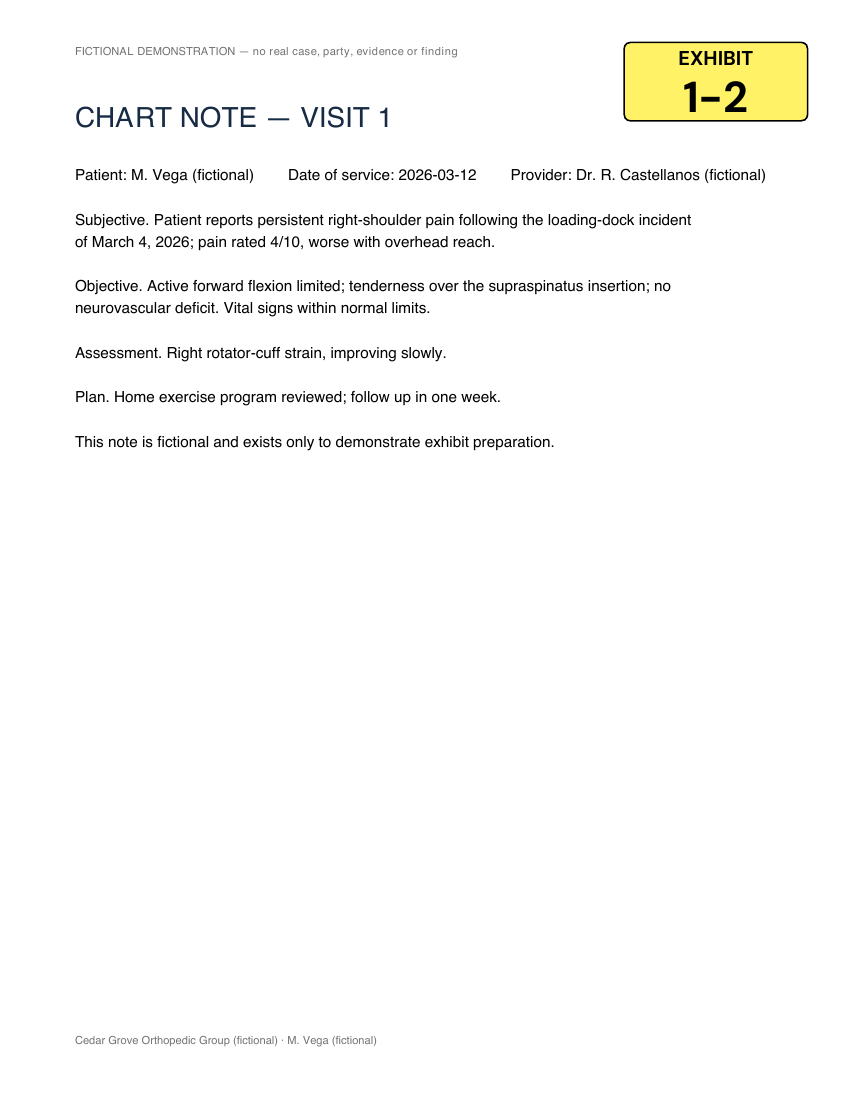
For courts that require each page of a multi-page exhibit to be numbered, the exhibit stamp carries the page number: page 1 reads Exhibit 1, page 2 reads Exhibit 1-2, page 200 reads Exhibit 1-200. One option in setup, previewed page by page before you pay.
Open the toolPreview every page free; the download is the step you pay for.
- With Number every page of each exhibit on, page 1 of an exhibit reads the exhibit label (Exhibit 1) and every later page reads the label, a separator and the page number within the exhibit (Exhibit 1-2, Exhibit 1-3 … Exhibit 1-200).
- The separator is a hyphen (1-2) or a period (1.2), and the first page can be numbered too (1-1) when a department asks for it.
- The page number is printed in the exhibit stamp, in the template, size and position you chose; a prefix is kept (P-1 becomes P-1-2) and a letter label reads A, A-2, A-3.
- Each exhibit in a set restarts from its own label, and Bates numbers can run across the whole set on the same pages.
- The Exhibit List, the contents page, bookmarks and file names keep the exhibit label; only the stamp on each page carries the page number.
- The position step warns on page 1 when the last page's label would not fit the stamp and offers to widen it, and the exact-export review reads the stamp text back from every page before the file is delivered.
What the pages read
| Page | Stamp reads | Why |
|---|---|---|
| Page 1 | Exhibit 1 | The first page carries the plain exhibit label (or Exhibit 1-1 if you choose to number it). |
| Page 2 | Exhibit 1-2 | Every later page carries the exhibit label, the separator and its page number within the exhibit. |
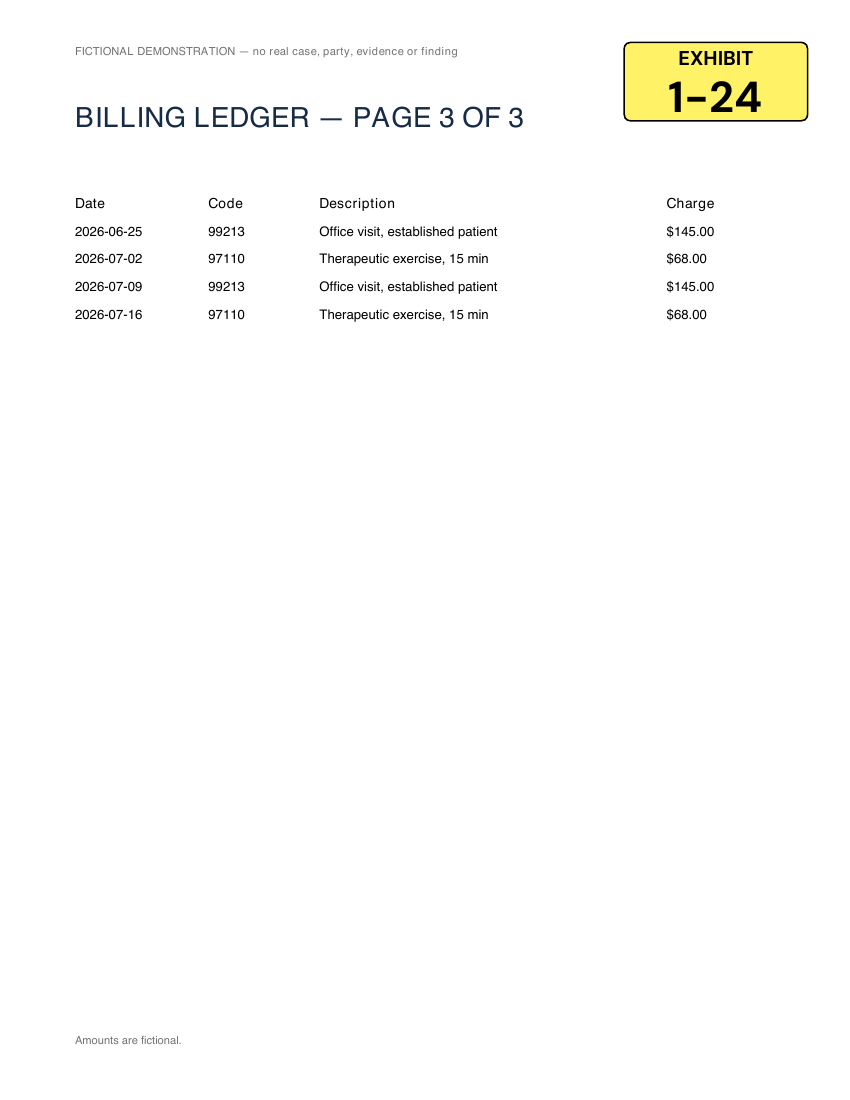
| Page 24 | Exhibit 1-24 | The last page of a 24-page exhibit. A 200-page exhibit ends at Exhibit 1-200. |
| Exhibit 2, page 1 | Exhibit 2 | Each exhibit restarts from its own label; a letter label reads A, A-2, A-3. |
Watch the clicks on a real exhibit
One 24-page exhibit, added at the tool like any upload: stamped on arrival, then Change label or template, Numbers, Number every page of each exhibit, Check placement on page 2, Prepare export, and the real stamped file read on page 2 and page 24 before anything is paid. The same clicks, in the same order, as the steps above.
See it on a California binder
A fictional Los Angeles trial binder: four exhibits, 34 pages, every page numbered in the stamp. Open it in the tool with one click, or watch the captioned walkthrough. Nothing is uploaded; the checkout is shown, never paid.
From setup to a numbered binder
Step 1
Add the exhibit and open stamp setup
Drop the PDF into the tool. An eligible single document of 120 pages or fewer is stamped on arrival and lands on the review screen: choose "Change label or template" there. A longer document, or several documents, opens stamp setup directly.
Step 2
Choose Numbers and turn on Number every page of each exhibit
In the Stamp tab, under the label fields, choose Numbers, then select the option. The line beneath it shows what the pages will read for your label and page count, such as "EXHIBIT 1 · EXHIBIT 1-2 · EXHIBIT 1-3 … EXHIBIT 1-200". Choose 1-2 or 1.2, and whether the first page is also numbered.
Step 3
Stamp, then read the pages before paying
Choose Prepare export (Prepare all exhibits for a set). The review screen states the first and last label ("EXHIBIT 1 stamped on all 200 pages, numbered 1 through 1-200"), and Preview opens the real stamped file so page 2 and the last page can be read. If the last page's label would not fit the stamp, the tool says so and offers to widen it.
Step 4
Review the exact export and download
The exact-export check reads every page's stamp back before the file is delivered. Payment comes after that check, never before.
Three kinds of page marking
Exhibit page numbering
Exhibit 1, Exhibit 1-2, Exhibit 1-3 … in the exhibit stamp, wherever you placed it. This page.
Bates numbering
ABC-0001, ABC-0002 … one sequence across the set, in its own position on every page. Can be used together with exhibit page numbering.
Trial Binder page labels
A1, A2 … B1 at the bottom center with matching ranges on the contents page. Not stamped while exhibit page numbering is on.
Check the instructions for your case
Los Angeles Superior Court Local Rule 3.53 provides that documentary exhibits consisting of more than one page must be internally paginated in sequential numerical order. Superior Court of California, County of Los Angeles, Local Rules Chapter 3, Rule 3.53 (internal pagination of multi-page exhibits) — Local Rule 3.53, Uniform Method of Marking Exhibits, second paragraph; printed page 57, PDF page 33 of the Chapter 3 PDF; rule effective July 1, 2011. (opens in a new tab)
Northern District of California Civil Local Rule 30-2(b)(2) provides that when the pages of an exhibit are not numbered internally and it is necessary to identify pages of the exhibit, each page must receive a page number designation preceded by the exhibit number, for example Exhibit 100-2, 100-3, 100-4. United States District Court for the Northern District of California, Civil Local Rule 30-2(b)(2) — Civil L.R. 30-2(b)(2), Sequential Numbering of Exhibits, printed CIV-48 (PDF page 56); effective October 2, 2026. (opens in a new tab)Scope: Northern District of California: numbering of exhibits identified at depositions and at trial; when an exhibit's pages are not numbered internally and page identification is necessary, each page receives a page number designation preceded by the exhibit number (e.g., Exhibit 100-2, 100-3, 100-4). Federal only; not a California state rule.
Confirm the separator and first-page format against the instructions for your case before preparing the final files.
What ExhibitPrep does not do
- It does not choose the form for you. Departments within one courthouse differ (1-2, 1.2, or the first page numbered); confirm the assigned department’s trial order and set the style to match.
- It does not shorten a label to make it fit. If the last page’s label would overflow the stamp, the position step blocks the export and offers to widen the stamp.
- It does not renumber your exhibits or close gaps. Labels print exactly as assigned; see the help article for what stays unchanged.
ExhibitPrep formats documents. It does not provide legal advice, submit filings, or determine whether evidence is admissible or a filing meets court requirements.
Exhibit page numbering FAQs
Which courts require every page of an exhibit to be numbered?
Check the current rules and orders for your case. The source-linked court guidance on this page explains the scope of the Los Angeles Superior Court and Northern District of California rules. Match the page-number format to your case instructions.
Should the first page read Exhibit 1 or Exhibit 1-1?
By default the first page carries the plain exhibit label (Exhibit 1) and numbering starts on page 2 (Exhibit 1-2). If the department wants 1-1 on the first page, select "Also number the first page".
Can I use a period instead of a hyphen (1.2 instead of 1-2)?
Yes. Choose the page number style in the setup: 1-2 (hyphen) or 1.2 (period).
How is this different from Bates numbering?
Bates numbering is one continuous sequence across the whole set (ABC-0001, ABC-0002 …) placed in its own position. Exhibit page numbering is the exhibit label plus a page number within that exhibit (Exhibit 1-2), printed in the exhibit stamp itself. A page can carry both.
Does it change my exhibit list or the contents page?
No. The Exhibit List, the contents page, bookmarks and file names use the exhibit label (Exhibit 1). Only the stamp on each page carries the page number. While it is on, Trial Binder page labels (A1, A2) are not stamped, because the stamp already identifies every page.
Is every page checked before I download?
Yes. The position step previews the page you are looking at with its own label, warns on page 1 if the last page's label would not fit the stamp, and the exact-export review reads the stamp text back from every page and refuses the file if any page carries the wrong text.